
Help
Last updated: 13 September 2026 — matches version 2.4.0
Getting started
- Download DooSpend from the App Store
- Open it — a few onboarding screens show you around
- Add your accounts (cash, bank, credit card) — More → Wallet
- Start logging — tap the "+" in the middle of the tab bar, or a shortcut tile on the Dashboard
Five ways to log an expense
Tap the "+" in the middle of the tab bar and the menu opens with all five. Anything that uses AI always waits in the Review tab for you to confirm before it becomes real money.
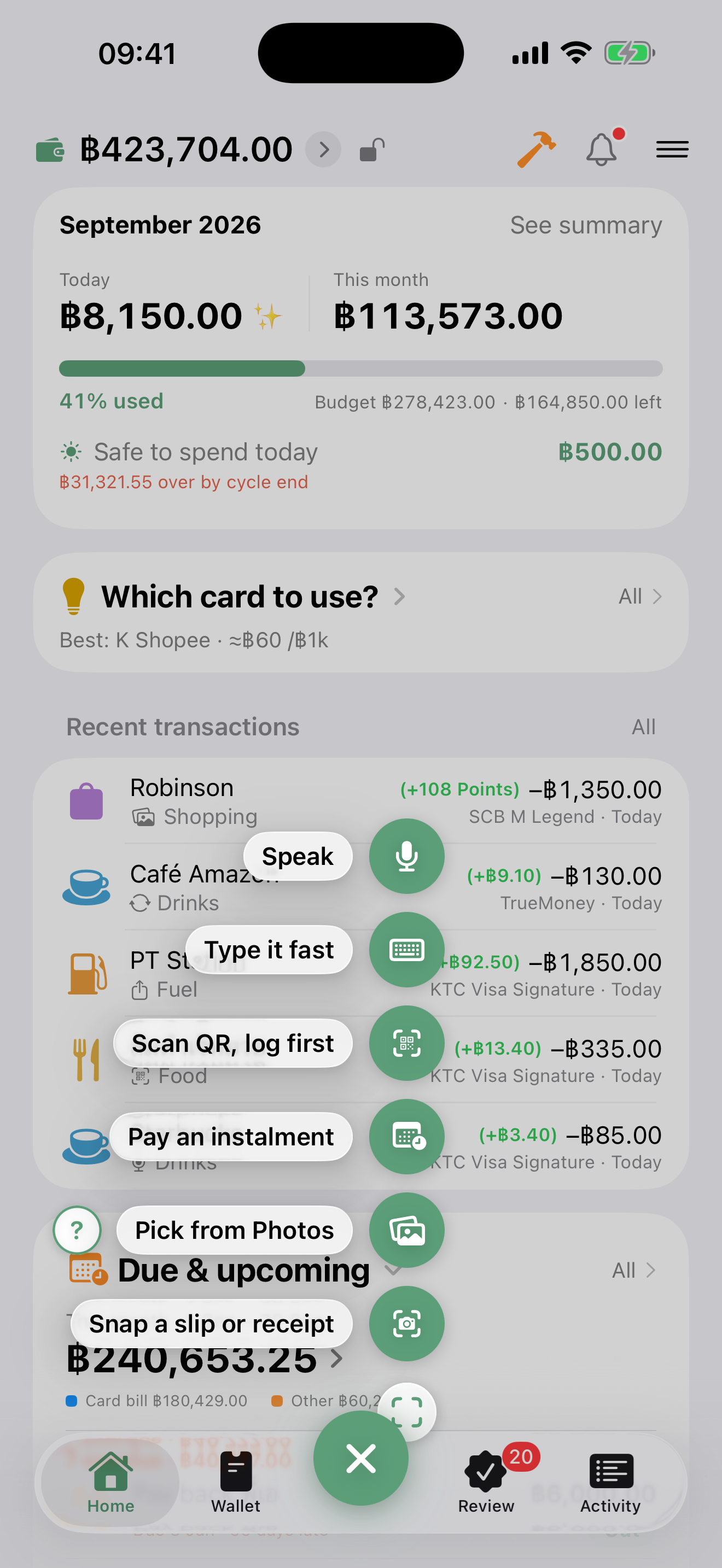
1. Snap a slip or receipt
Opens the camera, one image at a time — a transfer slip, a PromptPay slip, or a shop receipt. The AI reads the amount, the merchant and the date (counts as 1 of your AI quota).
Shortcut: press and hold the "+" button to jump straight to the slip camera.
2. Pick from your photo library
You can pick several at once — the AI works out what each one is, you don't pick a mode:
- Transfer slip / receipt (one entry per image)
- A Shopee / Lazada / TikTok order, or any screenshot with several lines → split into separate entries (up to 15)
- Anything that isn't financial → skipped automatically. In the app, tap the "?" next to the button to see what it accepts
When you pick several, you see which one it's on. Photos that haven't been downloaded from iCloud yet take a moment each, so the progress bar says "loading 4 of 10" instead of appearing stuck.
If one fails (no connection, or the photo is still in iCloud) you get a Retry for that one only. The ones that already came through don't need picking again, and nothing disappears silently.
3. Scan a QR before you pay
Scan a shop's QR → the preview shows who gets paid, the amount, and a heads-up to check before you pay. You can also tap Pick from library to scan a QR out of a saved screenshot.
- DooSpend helps you log — it does not pay for you. You still pay in your bank app
- Tap "Log it before paying" → the entry waits in Review → confirm it again once you've actually paid
4. Quick type / 5. Speak
Type or say something short, like "coffee 75 Starbucks" → the AI separates the amount, the merchant and the category. Speech becomes text on your device (no audio leaves the phone) and only the text is sent.
Log it ahead of time (so you don't forget)
An entry in this app means it already happened. Give it a future date and the money leaves your wallet straight away even though you haven't paid — budgets and your "available" figure go wrong with it. So there's a separate path.
When you add an entry and pick a date in the future, the button changes to Log ahead — the entry rests in the Review tab instead of being saved for real.
- Not a single baht is counted yet — account balances, budgets, "available", charts and reports don't move until you confirm
- Before the day, it's silent — no badge, no reminder. Logging tuition two months ahead and being nagged for two months is a reminder you can't act on
- Three days out the row gets a badge and the first reminder. On the day it reminds you again and you can confirm
- You can't confirm early, because confirming moves money immediately. If you really did pay early, use Pay now — date it today, which moves the date first
- Past the date it doesn't vanish — it stays visible until you confirm it or throw it away
- The transactions list has a Logged ahead group at the top with the real date and a countdown, e.g. "04/09/26 · in 2 days" — collapse it if you'd rather not see it
- Edit something on the row and tap "Later" and your edits are kept — open it again and they're still there
Credit cards
Best Card Selector
A chip appears while you're filling in an entry — "Use KTC Visa Signature for +฿20.00" — with the merchant's name as a tappable chip.
Set up reward rules for each of your cards yourself (category, %, caps, minimum spend — free and unlimited), then tap Which card? to see the best one before you pay.
Free covers one category of your choosing (switchable once a month). Pro covers every category and adds the automatic part: the ✨ chip that tells you which card earns what while you type, and a warning before a reward cap runs out.
Payoff plan (Avalanche / Snowball)
More → Payoff plan, or the Dashboard tile that appears once two or more cards carry a balance.
- Avalanche — highest interest first, saves the most money
- Snowball — smallest balance first, closes a card sooner, easier to stick with
- Set what you can pay each month → see the timeline for when you're done
Bringing data in from elsewhere
CSV / Excel (exported from another app such as Money Manager or Spendee, including Excel files saved on Windows) — read entirely on your device, no AI, always free and unlimited. Go to Move from another app → pick the file → map the columns → the rows queue up in Review. If the file has a category you don't have yet, you can create it right there on the mapping screen.
Credit card statement (PDF) → the AI breaks the whole statement into entries in one pass (scanned PDFs and password-protected PDFs are supported) → you choose which ones to import. Use the real PDF from your bank's e-mail if you can — the amounts read far more accurately than a screenshot. The first one is free for everyone; repeat imports are Pro. A file that needs Pro says so in the Review list, and if you upgrade later you can carry on from the same entry — no need to share the file again.
Balance carried over (starting mid-way)
Just started using the app but the card already has a balance? Enter Carried-over balance when you add or edit the card and it's folded in with what you log from now on, so the outstanding figure matches your real statement from month one.
Cash advance from a card
Log it as a transfer from the card to the account that received the money (bank or wallet). It goes into the card's outstanding balance the way it does on the real statement, and lands in the billing cycle that matches the date. It is not counted as spending, because the money is still yours — it only moved. The app does not calculate cash-advance interest (banks charge a different rate than purchases) — when the bank bills you, log that interest as its own entry.
Due-date reminders
Five local notifications are scheduled automatically (7 days / 3 days / 1 day before, on the day, and 1 day after). Turn them on or off in More → Credit card reminders.
Shared credit limit (primary + supplementary cards)
For a supplementary card, or any card that shares one limit with a primary card, turn on Shares a limit with another card on the joining card and pick the primary. The app then measures the whole group against the single limit and warns when the combined total is close (≥85%) or full — instead of looking at each card alone, which under-reports.
Pockets — log together, split with friends
A pocket is a shared ledger for splitting costs with family, friends or a group trip. There are two kinds:
- Personal pocket — groups entries inside your own account so you can see a summary. Stays on your device and your private iCloud
- Shared pocket — invite other people, log together in real time, everyone sees the same set of entries
Create a shared pocket and invite friends
Creating a shared pocket is a Pro feature. Joining a pocket someone invites you to is always free.
- Pockets tab → "+" → name it, pick an icon and colour → turn on Can be shared with others
- Open the pocket → "⋯" menu → Invite a friend → share to LINE, copy the link, or share it any other way. The same menu has How your friend joins with the steps
- Your friend (a different Apple ID) taps the link → it opens in the app and joins automatically. If tapping doesn't work, copy the link → Pockets tab → "+" → Join with a link → paste
If syncing is slow or nothing appears, try switching to mobile data and pull to refresh (some Wi-Fi networks block iCloud syncing). You can only invite people to a pocket that has sharing turned on — a personal pocket can't be shared.
Adding entries to a shared pocket
- Open the pocket → "+" → enter the amount on the calculator and pick a category
- Choose who paid — if a friend paid, pick their name
- If you paid, you can pick which account it came from, and the full amount you fronted really leaves your personal account — or choose don't deduct to keep the trip separate from your own money
- Save → the entry syncs to everyone. The add screen takes on that pocket's colour so you always know which one you're logging into
Split with (choosing who shares a bill)
Each bill can be split with a different set of people. The default is an even split between everybody; in the add form tap Split with and tick only the people on that bill (you're always included). The settlement follows what you ticked.
Pocket summary — who owes whom
The settlement card appears on its own once two or more people have entries:
- Even split by default, but you choose who's on each bill, and the app works out the minimum transfers
- The transfer list, "A → B ฿X"
- A per-person summary — over, short, or square
Take those transfers and settle up by PromptPay yourselves — DooSpend does not move money.
Share a trip summary and let friends scan to pay you back
When the trip ends, tap Share trip summary → you get a card showing who owes whom, with your PromptPay QR on it. Send it to the group chat and your friends scan the QR to pay you back (the first time, you'll be asked to set your PromptPay number). DooSpend doesn't process the payment — it summarises and makes the QR.
Leaving or deleting a pocket
- A participant swipes left → Leave pocket: it disappears from your device, but the owner and everyone else keep everything
- The owner swipes left → Delete permanently: every entry goes, and it disappears for everyone it was shared with. This cannot be undone
How pocket data is stored
- Synced through Apple iCloud (CKShare) — there is no DooSpend server
- Only the people you invited can see it, and the owner can stop sharing at any time
- Updates arrive in real time (silent push). If you don't see one straight away, switch out of the app and back to refresh
For whom — who the money was spent on
For whom is an axis at right angles to category. It answers what a category can't: "how much did I spend on my child this month?" — the school fee still sits in the Education category, but it's tagged for: child.
- Set up the names in More → For whom (dad, mum, child, myself…)
- While logging, pick one on the For whom row — or add a new name right there in the form
- In the transactions list you can filter or break the chart down by For whom exactly like category
- Select several entries at once and tag them all in one go
This is different from who paid in a shared pocket: that's the person whose money went out, this is the person the money was spent on.
Budgets & your financial month
Set monthly and per-category budgets, and set the day your month starts to match your payday (say the 25th) — every summary and budget then follows that cycle instead of the 1st to the end of the calendar month.
Not counted as spending (keeping debt and instalments separate)
Big debt and instalment payments tend to drown out your real spending. Mark them not counted as spending and they stay out of the month's totals and budgets. There are two levels:
- A whole category — edit the category (say Mortgage or Debt payment) and turn on entries in this category aren't counted as spending. New entries in it are excluded automatically (existing ones aren't changed retroactively)
- A single entry — in the add form tap More → turn on Not counted as spending for that entry only
The money still leaves the account for real, and if you paid by card you still earn the points or cashback — it simply isn't included in the spending total. Excluded entries show a − mark and appear dimmed in the list. On the Dashboard, "today" and "this month" always leave them out; the Transactions screen hides them by default, but the filter (funnel) → turn off Hide not-counted rows shows the full picture including debt whenever you want (search always finds everything).
Want to see what the total would be if everything counted? The summary screen has an Include not-counted rows switch under the card. It's temporary on purpose — leave the screen and it's off again, because remembering it would mean two versions of the truth in one app and a screenshot travels further than its context. With it on, the chart splits that money out as its own amber not counted as spending slice pinned to the end of the legend, rather than folding it into its category — so you can see where the difference comes from. With it off, that money isn't in the chart at all, so the chart always matches the card. The Dashboard, budgets and pockets deliberately do not have this switch.
What's left to spend today
The left today line on the Dashboard summary card, with a warning if this pace will blow the budget.
Once you've set an overall monthly budget, the app spreads it across the days of your financial month and tells you "฿X left today" on the Dashboard. If your pace is heading over budget before the cycle ends, it warns you early, and there's a morning notification with the figure (on/off in More → Reminders). This daily number is a Pro feature — free users still see the budget bar and what's left for the month as usual.
Savings goals
Set a goal (a trip, an emergency fund, a car deposit) and the app keeps that money out of your available figure. Go to More → Savings goals (it sits next to Wallet, because it's the same money).
The app doesn't hold your money and isn't connected to your bank — it can't lock anything. What it can do is stop inviting you to spend it.
Where does this money sit? — chosen once, when you create the goal
This one answer decides how the goal behaves, and it can't be changed later (whatever is attached would have nowhere to go):
- Already in a separate account — the app creates a savings account for it. Saving into the goal is a real transfer from the account you pick, and you can take money back out (transfer it back). The amount saved is read from that account's balance, so it includes any carried-over balance you entered when you created it
- Still mixed in with an existing account — not a single baht moves; it just reserves an amount out of the account you pick. Saving less releases the reservation. The app watches whether the real money in the account still covers what's reserved, counting every goal reserving from that same account (each one alone looks fine while together they're over)
Savings board (Pro)
Set a target date and a frequency (daily, weekly or monthly) and the app builds a board of squares — tap a square to save once, like a paper savings chart.
Free users can see their own goal's real board in full (each square's amount is already worked out) but it's greyed out and can't be ticked — you can still save from the Save button as usual.
- Each square's amount is spread from what's left. Squares you've already ticked don't move, because that's money that really went out. The last square uses the true remainder, so the total always lands exactly on the goal
- Past 30 squares they collapse into groups — daily boards group by your financial month (using your start day), weekly and monthly ones group by year. Each group expands and collapses on its own
- The date on a square is a guide, not a commitment — being two days late loses nothing, and squares don't disappear just because time passed
- Change the frequency later and the ticked squares are packed to the front of the board; nothing is lost
Savings history — editable after the fact
- When you save you can backdate it and add a note (the note appears after the date in the history)
- Tap a history row to change the amount — on the separate-account path the transfer is edited with it, so the account balance follows immediately
- A history row says which square that money landed in ("square 7"). Saving outside the board's rhythm is marked off-board — it counts in full either way, there just wasn't a square for it
- Swipe to delete, with an Undo button. Deleting a row also removes the transfer attached to it and empties the square on the board — Undo brings both back, not a green square with no money behind it
When you reach the goal
Tap Mark as complete to file it away — it's still there under Completed, which stays collapsed so it doesn't crowd the goals you're still working on. You can un-mark it and carry on at any time.
Where the reserved money shows up
- Wallet — under the balance there's a line: "available ฿X · reserved for goals ฿Y". If more is reserved than you actually have, a second line says "reserved beyond your balance ฿Z" (it appears on the goal screen too)
- The reserved from other accounts group in Wallet — every goal of the "mixed in" kind gets its own row saying how much is reserved from which account
- Account detail — says how much of this account is reserved, how much is left to use, and which goals reserved it
- Net worth isn't reduced — savings are still your money, just not money you meant to spend this month
- The bell — nudges about your pace (for example, how much per save to still reach the date)
Deleting a goal, or its account
- Delete a goal from Edit goal. On the separate-account path the account and the money in it stay — only the goal and its savings history go. On the mixed-in path the reserved amount is released back into available (no real money moves)
- A savings account can't be deleted from Wallet while a goal is attached — delete the goal first, then the account deletes normally (the transfers you logged are not removed with it)
Free covers one goal — saving manually is unlimited, and the app still reserves the money and nudges you. The savings board (the app spreads the amount over every square and you tick them off) and having several goals at once are Pro. Goals beyond the free quota stay fully visible; you just can't move their numbers.
Other features
iCloud sync
Automatic if you're signed in to iCloud — your data follows every device on the same Apple ID. Check the status in More → Security & sync: nothing pending / syncing / waiting for a connection / not signed in to iCloud. Each shared pocket has its own sync chip.
Looking back at past months
The summary card on the Dashboard has chevrons either side of the month name — step back through previous months without leaving the screen.
Merchant aliases
When the AI reads a merchant name that's too long — "STARBUCKS COFFEE COMPANY LIMITED" — change it to "Starbucks" and the app remembers. The next slip from that shop is renamed automatically. Manage the list in More → Merchant aliases.
Photo storage (deleting old slip images)
More → Photo storage → choose how far back to keep (6 months / 12 months / keep everything) → tap Delete images older than X months. The entries themselves stay; only the images go.
Quick Actions (Home Screen)
Press and hold the DooSpend icon on the Home Screen → snap a slip, scan to pay, add an entry, speak.
Widgets (Home Screen + Lock Screen)
Press and hold the Home Screen → + → search for "DooSpend" → pick small or medium to see this month's spending, your budget and frequent categories. Tap the widget to jump straight into logging.
Lock Screen / StandBy: press and hold the Lock Screen → Customize → add a DooSpend widget (budget gauge circle, rectangle, or the line above the clock). It takes the system's monochrome tint.
Siri & Shortcuts (quick log)
Log without opening the app: say "quick log an expense in DooSpend" to Siri, or build a Quick log Shortcut (amount + category) and bind it to the Action Button, Home Screen or Spotlight — one press and the entry is in.
Instalments
Record something you're paying off over several instalments and the app tracks how many are left, what's still owed, and reminds you when one is due.
An instalment plan never logs money silently. When one is nearly due, the app drops the instalment into Review for you to confirm, the same as a subscription — because the date you actually pay and the due date usually differ, and some months the amount isn't the same.
- How many days ahead is set in More → Reminders (3 days by default). With reminders off you still get the row, just on the due date itself
- Not paid yet — swipe the row away and that instalment stays outstanding, it doesn't disappear. At the next one it comes back as a single row with the combined total ("2 instalments outstanding · 3–4 of 12") and one confirm covers them all
- Pay it any way you like — confirm the row in Review, tap Pay this instalment on the plan, or log an entry yourself and link it to the plan. All three do the same thing and the waiting row disappears
- Attach a slip on the instalment row in Review — snap one or pick from your library, as proof this instalment was paid
- If you snap a slip whose amount and merchant match an outstanding instalment, the app offers to link it. It never links for you, because a wrong guess means you'd never know which instalment went missing
When you create a plan
- Interest goes in as %/month (the way Thai cards and finance companies quote it) — the app works out the per-instalment amount and the real total you'll pay
- Amounts take satang; no need to round
- Started paying before you had the app → enter how many instalments you've already paid and the date field becomes next instalment due (not the first one). The app counts on from there
- The start date locks once the plan is running — tap Edit to unlock. Changing it shifts the due dates of the remaining instalments; the ones already paid aren't touched
- Closing a plan early (paying off the rest) — you get a confirmation that asks two things first: the payoff date (backdatable — if you paid it off last week and are only logging it now, it lands in the month you actually paid instead of inflating this one) and the amount: pay off the remaining principal or pay every remaining instalment. Thai instalments carry flat interest, so each instalment already includes interest for months that haven't happened yet — the two figures differ, and the app can't know which way your lender calculates it. Pick the one that matches what you really paid (at 0% the two are equal and there's only one button). The app then logs one payoff entry and moves the plan to Finished. Delete that payoff entry later and the plan reopens — it's never left "closed early" with no money behind it
- Deleting a plan means you stop tracking the debt, not that the money you paid is erased — the linked entries stay in your ledger, they're just unlinked from the plan
Lending & borrowing
Money you borrowed from a friend, or lent to one, lives in More → Instalments / Lending, the same place as instalment plans.
The outstanding amount goes into your net worth automatically — money you lent out is still yours (plus), money you borrowed still has to go back (minus), so the net worth card counts both directions.
- Repay as many times as you like — log each repayment and the app reduces what's outstanding, closing it when it's fully repaid
- You can write it off or close it early even if it isn't fully repaid
- Deleting means you stop tracking the debt, not that the money paid is erased — the entries stay in your ledger, exactly like an instalment plan
Interest — four kinds, matching what you actually agreed. The question is "what did we agree", which already happened, not "can I afford it":
- No interest — pay back what you borrowed
- Equal instalments — you agreed on a number of equal payments. Enter %/month and the app works out the total interest, the total to repay and the amount per instalment (flat interest on the original principal, the way Thai finance companies calculate it, not reducing balance)
- Interest only, principal later — you keep paying interest and the principal doesn't drop until you settle it in one go. Pay down part of the principal and the next period's interest follows the remaining balance
- Interest deducted up front — borrow 10,000, receive 9,000. The app knows that interest was paid on day one, so the progress bar measures against what really has to be repaid, not the face value
The app records what you agreed; it doesn't judge who should get what. Every figure comes from what you entered and what you logged as repaid.
Free: unlimited debts, repayments and outstanding balances. Pro: debts that carry interest (where the app does the interest, spreads the instalments and watches the due date) — a debt you set up with interest earlier stays editable.
Recurring payments (subscriptions & monthly bills)
Everything you pay on a cycle in one place — memberships (Netflix, Spotify, iCloud), car payments, rent, insurance, water and electricity — with the monthly and yearly totals.
- Billing cycle can be weekly, monthly or yearly. Monthly ones get a "billed on the Nth"; weekly and yearly count from the first billing date (yearly amounts are averaged per month in the total so they're comparable)
- Amount varies (water, electricity) — turn this on and the row that arrives in the queue is tagged check against the bill, pre-filled with last month's amount to edit. It still pre-fills; it just tells you not to confirm blindly. A bill you ticked repeat monthly on while logging is not marked as varying, because the amount you just typed is the real one
- Near the billing date the app drops the entry into Review to confirm — it never logs money silently, because the amount may change or the service may have been cancelled. How many days ahead is set in More → Reminders (1 day by default); the same number controls both the row and the notification
- The card header says billed next — which one comes soonest, on what date, in how many days, for how much. Several on the same day are combined into one row with the total
- Quiet for more than 45 days → a forgot to cancel? tag on the row and a note in the bell (something that genuinely saves money)
The app also detects them automatically from entries you pay repeatedly. Anything it spots lands in a waiting for confirmation group where you tap Yes, a subscription or No before it counts towards the total (tap No and it won't ask again).
How it guesses — deliberately tuned to ask rarely rather than guess cleverly, because asking wrongly costs you an answer while asking late costs nothing:
- It has to see a monthly rhythm twice — the same merchant at least 3 times, 25–35 days apart, with amounts within 15%. Ordering from the same restaurant twice a month apart won't be mistaken for a subscription
- Instalments are skipped — a row already linked to a plan is ignored (instalments meet every criterion naturally, being ~30 days apart for the exact same amount, but the app already knows what they are)
- Merchants are grouped by the same rule aliases and card rules use, so capitalisation or double spaces don't create a "new" shop that asks all over again
Or while logging an expense, turn on repeat monthly under the date field and the app sets up the monthly entry for you. Next month it reminds you and drops it into Review to confirm the amount. Edit or stop it in Recurring (stopping the repeat happens there, not on the entry — deleting one month's entry does not stop the repeat).
Merging duplicates
If syncing ever creates duplicates (a restore over the top, or iCloud sending twice) the bell tells you, and Merge all clears them in one go. The app never deletes your data silently — every time, you confirm.
Default account and list shortcuts
- Make the account you use most the default — More → Wallet → tap the star next to it. New entries start there
- In the transactions list: swipe left to delete (with an Undo button), press and hold for details, edit, duplicate or delete
Language & calendar
More → Language — switch between Thai, English and "follow the device" at any time, no restart needed.
The calendar (Buddhist or Gregorian era) is chosen separately from the language — it's only about how dates are shown. Backup files always use the Gregorian era whatever you picked, so moving to another device is safe across settings.
Letting AI do the logging (on/off)
Before anything is ever sent to AI, the app asks first — what is sent, who it goes to, and what it's used for. You grant it. Decline and everything can still be logged by hand as usual.
- What is sent — only the slip image, statement file or text you asked it to read, only when you tap to use it. Your ledger is never sent, and nothing goes out in the background
- Who it goes to — Anthropic's AI assistant (Claude), which does not train its models on API requests
- Audio never leaves the device — "speak" turns your voice into text on your phone and only the text is sent
- Withdraw any time in More → AI quota → Let AI do the logging. Turn it off and you'll be asked again before the next send
For a summary of where your data lives, see More → Your data.
Face ID lock
Turn on the app lock in More → Face ID / Touch ID is then required every time DooSpend opens, so nobody else can look through your money.
Backup & restore (.json) + export CSV/PDF
More → Backup & restore writes a complete .json of everything to Files or iCloud Drive, and restores it back. Backup files always use the Gregorian era, so they move safely between devices whatever your calendar setting.
Export to CSV (for a spreadsheet) or PDF (a report) from More → Export — pick a period and an account. Exporting is a Pro feature; importing CSV back in is always free.
The Review tab — fix it before you confirm
Everything the AI read (slips, voice or text, statements, QR) waits in Review so you can change the amount, merchant, category or date, and confirm before it ever touches your accounts.
- Tap the amount to flip between expense and income (for a money-in slip the AI read the wrong way round)
- Tap the image for full screen — swipe down to close
- An imported statement or file comes in as a group — open it and tap View original document to compare with the real file. The original travels with the entries you confirm
- A row the app suspects was imported before is tagged possible duplicate and isn't confirmed with the group — open it and tap not a duplicate if it isn't
AI quota
| Plan | Quota | Price |
|---|---|---|
| Free | 30 in the first month, then 5 per month | ฿0 |
| Pro monthly | 150 per month | ฿69 / month |
| Pro yearly | 150 per month | ฿590 / year |
One "use" is one thing the AI reads: one slip image · one note or voice message · one statement file (however many pages, still one). Picking or sharing 10 photos at once is 10. Logging by hand never counts. Tapping read again on an entry the AI already read counts as another.
The quota is shared across every device on the same Apple ID — your iPhone and iPad see the same number.
FAQ
Q: Is my data safe?
Yes — it's kept on your iPhone/iPad and your own private iCloud. We have no server holding transactions. See the Privacy Policy.
Q: Is there an Android version?
Not yet — DooSpend is iOS-only today. If you're on Android you can leave your e-mail on the home page to hear when it lands.
Q: If I change iPhone, do I lose my data?
No, as long as you're signed in to iCloud — install DooSpend on the new device and it comes back within seconds.
Q: In a pocket, who can see my data?
Only the people you (or the pocket's owner) invited through the iCloud link. Members see every entry in that pocket, but never your personal entries — personal means not tagged to the pocket.
Q: How is the settlement calculated?
An even split by default, but you choose who's on each bill, and the app works out the minimum transfers. Whoever paid more is owed; whoever paid less owes.
Q: The AI misread a slip — what now?
Fix it on the pending entry before you confirm — the amount, merchant and date are all editable. If you keep renaming the same merchant, the app remembers it through Merchant Aliases.
Q: When I use AI, what leaves my phone?
Only the image or text you chose to have read (a slip, statement, screenshot, or the text from "speak"). It goes through our proxy to Anthropic Claude along with a random per-device id used to count the quota and stop abuse — that id is not your name, e-mail or Apple ID, and doesn't say who you are. The proxy stores counts only, never images or content.
Q: Does Best Card use real, live card promotions?
It calculates from the reward rules you set up yourself for each card (category, %, caps, minimum spend) — not a live bank promotions database. So if a promotion changes, update the rule. The app explains its reasoning every time so you can check it.
Q: How do I set up a co-brand card that only earns at one shop (a Shopee card, say)?
When adding or editing a rule there's a shops this rule applies to field under the category picker — type words that appear in the merchant name (e.g. shopee), comma separated, then choose only these shops (earns only when you log that shop) or except these shops (earns everywhere but those — for a restaurant promotion that excludes Grab or LINE MAN). Matching looks at the entry's merchant field, so log the shop name to get the bonus. While logging, the app offers the rule's shop names as tappable chips so you don't have to type them.
Q: How do I cancel Pro?
iOS Settings → Apple ID (your name at the top) → Subscriptions → DooSpend Pro → Cancel. It stays active until the end of the period you already paid for.
Q: Can you refund me directly?
No — refunds go through Apple at reportaproblem.apple.com.
Contact
Problems, feature requests, bug reports — whichever is easiest:
- E-mail — apiwat.pe@gmail.com
- Facebook — message us on Messenger